Upcoming Virtual dSTORM Training – Coming January 29, 2026 register now>
LNP Axis 2.0
Last updated: December 1st 2025

Free and open-source analysis tool for easy analysis for lipid nanoparticle (LNP) data across multiple datasets.
Instructions
Print Section
Overview
LNP Axis is a free and open-source analysis tool for easy analysis of lipid nanoparticle (LNP) data across multiple datasets. LNP Axis allows users to generate both standardized and custom plots with user-defined sample names, and the analysis of features such as LNP counts, cargo and ligand positivity, and abundance plots across several fields of view (FOVs) and samples.
LNP Axis is designed for use with datasets acquired using ONI’s AutoLNP software and analyzed using AI LNP Profiling analysis on ONI’s cloud-based analysis platform, CODI.
Download Results from CODI
To use LNP Axis, data must be downloaded from CODI using the batch download feature. To begin, select the collaboration of choice in CODI and click the “Analysis results” button on the left side (Figure 1). AI LNP Profiling analysis runs automatically with AutoLNP, resulting in a populated list of analyses in the results section.
Then, on the upper section click “batch download” (Figure 2):
1. Scroll to datasets of choice and click the empty circles to fill them in (Figure 3).
2. Change the name in the upper section (Figure 4, yellow box), then click “download X results” (2 here, Figure 4, pink box). A zip file will be downloaded automatically. It is important not to navigate away.
3. Open the zip file, which contains four files, and save them. The file needed for LNP Axis ends in “results_batch.csv”.


Figure 1: Within a CODI collaboration, click this button to view analysis results

Figure 2: At the top of the analysis results section of CODI, the “batch download” button enables the checkboxes next to each analysis.

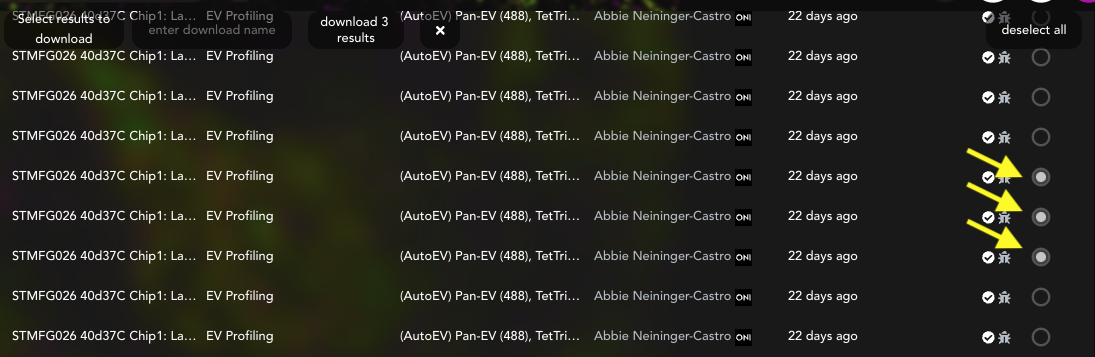
Figure 3: Select each analysis or FOV for the entire experiment.

Figure 4: Once all FOVs are selected, change the name in the yellow box to the chosen experiment title, then click the download button (pink box) to download the results. This might take a few minutes. It is important to keep this tab open until the download is complete.
Run the LNP Axis program to input data input and pre-process results
Download the appropriate program zip file for the operating system in use (Mac or Windows). Unzip the folder and double-click the application file (Figure 5). The LNP Axis program window should appear (Figure 6). If it does not happen automatically, check the “Troubleshooting” section (page 27).
Note
The file to run the LNP Axis program can be found under (Figure 5): LNP Axis V2/LNP Axis V2.exe
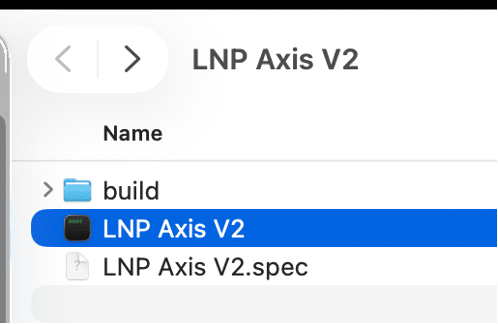
Figure 5: Appearance of the file to run the program. The source code (python) can be found in the folder named “Source Code” in the build folder.
Once the main program window is open, click the blue “Browse” button on the main menu (Figure 7) and navigate to the folder containing the results batch file. Then press the “Choose” button (Figure 6, pink arrow).

Figure 6: Browse through folders to find the results file and select “Choose” (pink arrow).
First, check or uncheck the Ligand and Cargo boxes as per the experimental setup (Figure 7, pink arrow). The channel names “Cargo” and “Ligand” can be changed by typing in the new names in the indicated boxes (Figure 7, blue arrow).
Next, select the color mode for the generated plots in the dropdown menu (Figure 8, green arrow). The default setting is “Black” for a black background with white text. If “White” is selected, plots will have a white background and black text.
There is also a checkbox below the color mode dropdown that is unchecked by default, labeled “Save .SVGs as well as .PNGs”. This checkbox can be selected to save the generated plots as vector format SVG files, as well as PNG image files. When ready, click the green “Go” button. At any time, click the red “Cancel” button or exit the app to cancel the run.
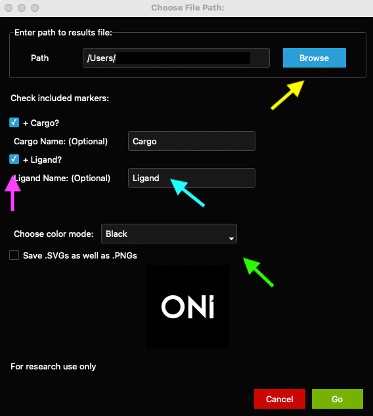
Figure 7: Main Window of the program. To browse through folders, click “Browse” (yellow arrow). Check/un-check Cargo and Ligand as per your experiment (pink arrow) and re-name if applicable (blue arrow). Change the color mode (“Black” or “White”) in the dropdown menu (green arrow)
The following window (“Experiment Details”) will appear, with a row shown for each lane found in the results file chosen. This section is fairly modifiable and user-defined (Figure 8, yellow arrows). The “Sample Name” will determine how the plots are generated: each Lane with the same Sample Name will be combined. Type in the relevant sample name under the Sample Name column for each row. All rows list the chip number (chip #) as 1 automatically. Replace the “1” with the corresponding Chip ID for each lane by typing a number on the Chip # column. This will be useful to color data by chip number.
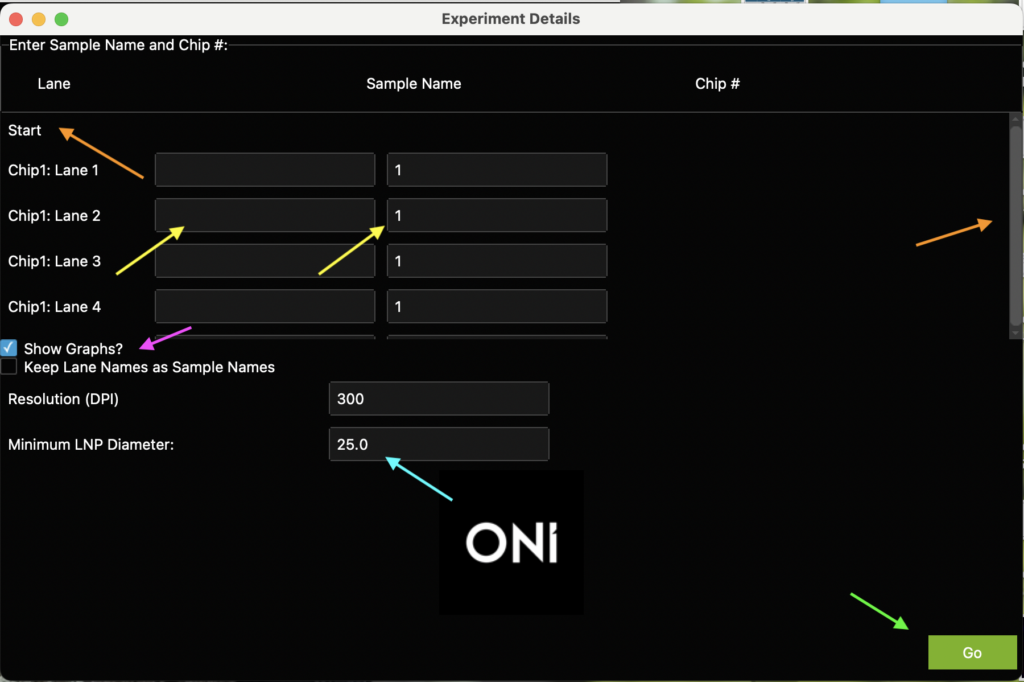

Figure 8: Example of Experiment Details window.
Note
If more than 4 lanes (i.e., more than one chip) are analyzed, the lane list is scrollable through a bar on the right-hand side. The “Start” and “Stop” row labels appear before and after the entries to help complete all entries (Figures 8-9, orange arrows).
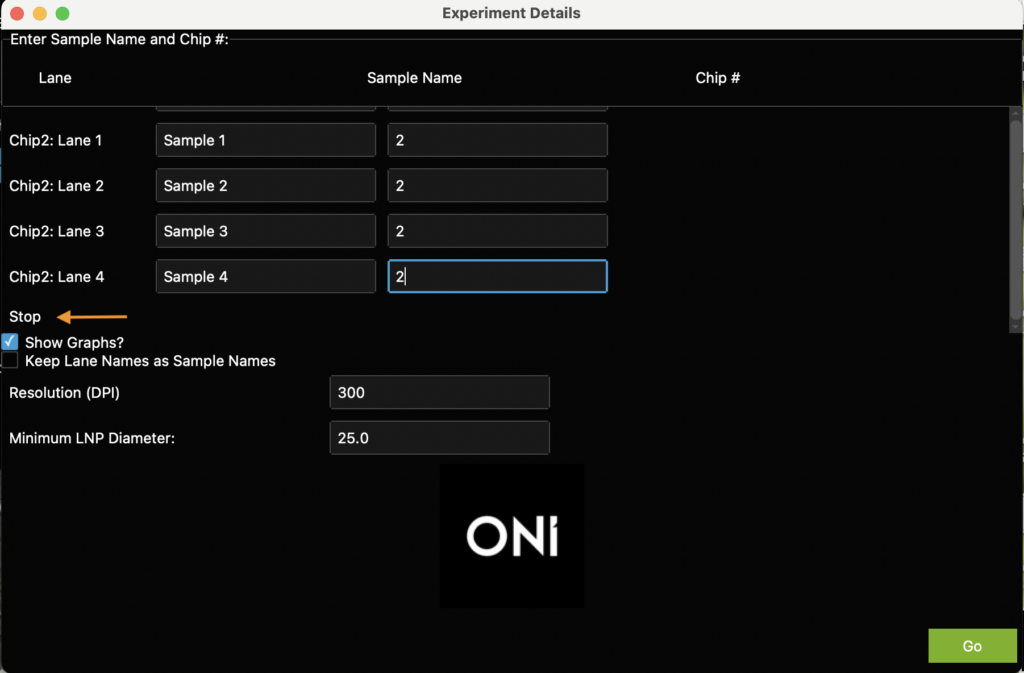

Figure 9: The Sample Name column and Chip # column are initial placeholders. Input the chosen custom names and chip numbers and click Go to run. This is an example of what the sheet looks like with chip numbers filled out.
If the titles listed under the “Lane” column are the appropriate ones, check the box “Keep Lane Names as Sample Names” to automatically copy the Lane names and leave the Sample Names column blank. All plots will be saved automatically in the same folder as the results file. When ready, click the green “Go” button (Figure 9).
The checkbox entitled “Show Graphs?” (Figure 8, pink arrow) can be unchecked. Otherwise, auto-generated plots appear as pop-up windows. The auto-generated plots show differences across samples (Figures 10-12) and are important for analyzing LNP formulation distributions and cargo/ligand positivity. Additional custom plots to visualize population-level differences can be generated afterwards. All plots get saved in the same folder as the results file.
Auto-Generated Plots
Cluster Count Swarm Plot
The first pop-up plot generated is a dot plot (swarm plot, like those in GraphPad Prism) where the X axis is separated by the sample names provided at the Experiment Details window, and where dots are colored by chip. The Y axis shows the total number of EVs per FOV. This is generated for all experiments and can be resized using the keyboard keys “a” (zoom in) and “s” (zoom out)
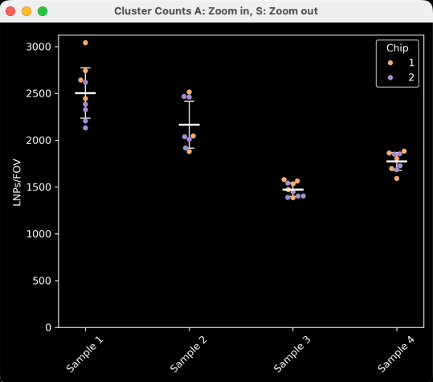
Figure 10: Cluster count swarm plot separated by sample name and colored by chip number.
Diameter Histogram (with or without Cargo Positivity split)
The second pop-up plot that is automatically generated is a histogram of LNP diameter distribution for each sample (Figure 11). If any cargo was labeled in the experiment, each sample will be split into cargo-positive (blue color) and cargo-negative (pink color) (Figure 12). This is generated for all experiment types.

Figure 11: Diameter Histogram example in an experiment without Cargo.
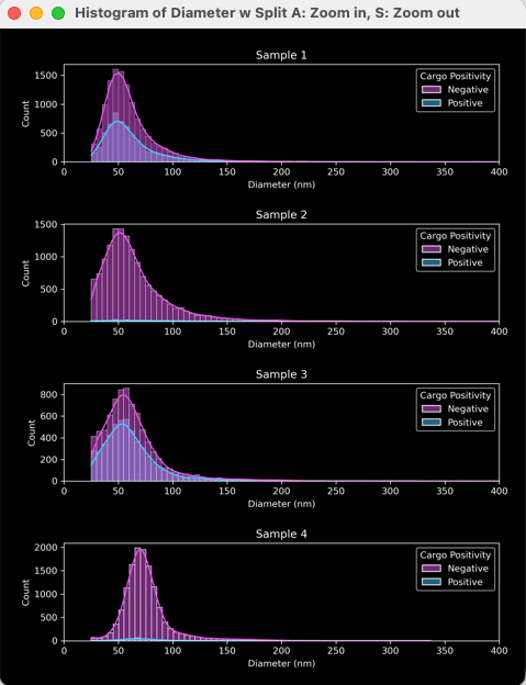
Figure 12: Diameter histogram example in an experiment with cargo labelling.
Scatter plot: marker abundance vs. diameter
The third auto-generated plot will depend on the type of experiment. If cargo is labelled and imaged, a plot will be generated for each sample. This will show each LNP as an individual data point on a cargo abundance (log) vs. diameter (nm) axis, colored by positivity (negative in pink or positive in cyan, Figure 13).
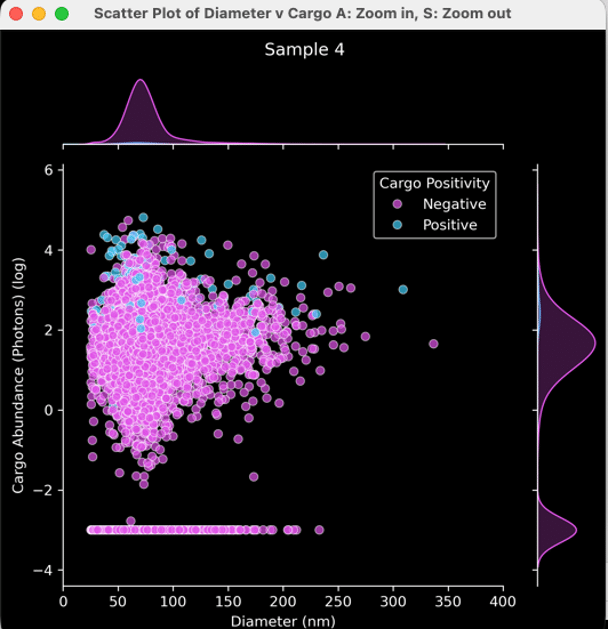
Figure 13: Scatter plot showing cargo abundance vs. diameter.
If any ligand is labeled and imaged, a plot will be generated for each sample and saved locally as a .png file. This shows each LNP on a ligand abundance vs. diameter (nm) axis, colored by positivity as well (Figure 14).

Figure 14: Scatter plot showing ligand abundance vs. diameter example
If both LNP cargo and ligand are imaged, both plots will be saved. The plot that appears will be for whichever is the last sample on the list. These plots will only be generated if cargo and/or ligand are selected in the initial window (Table 1).
Cargo Positivity Swarm Plot
The next autogenerated graph is a cargo positivity dot plot, where the X axis is separated by sample name, and the Y axis shows the percentage of cargo-positive LNPs in your sample. The dots are colored by chip. This plot will only be generated if LNP cargo is labeled and imaged.

Figure 15: Cargo positivity swarm plot.
Ligand positivity swarm plot
The following autogenerated graph is a ligand positivity dot plot, where the X axis is separated by sample name and the Y axis shows the percentage of ligand-positive LNPs in your sample. The dots are colored by chip. This plot will only be generated if any LNP ligand is detected.

Figure 16: Ligand positivity swarm plot.
Cargo abundance swarm plot
The final auto-generated plot to pop up is a cargo abundance dot plot, where the X axis is separated by sample name and the Y axis shows the abundance (~intensity, log) of cargo-positive LNPs. The dots are colored by chip. This plot will only be generated if any LNP cargo is labelled and imaged.
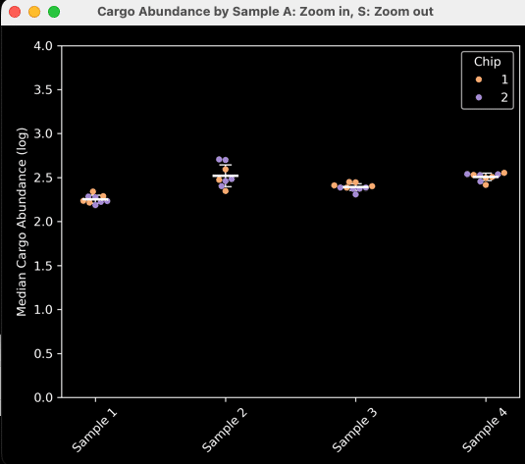
Figure 17: Cargo abundance swarm plot.
Table 1: Summary of auto-generated plot statistics obtained based on the sample and markers.
| Plotting Statistic | PanLNP only | PanLNP + cargo | PanLNP + ligand | PanLNP + cargo+ligand |
|---|---|---|---|---|
| Cluster counts by sample | ✓ | ✓ | ✓ | ✓ |
| Diameter histogram | ✓ | ✓ | ✓ | ✓ |
| Cargo abundance (log) vs. Diameter | ✓ | ✓ | ||
| Ligand abundance vs. diameter | ✓ | ✓ | ||
| Cargo positivity by FOV | ✓ | ✓ | ||
| Ligand positivity by FOV | ✓ | ✓ | ||
| Cargo abundance (log) by FOV | ✓ | ✓ |
Custom plots: joint scatterplot with side histograms
After the auto-generated plots pop up (unless the “Show Graphs?” is left unchecked), another window called “Scatter Plot Generator” opens (Figure 18). This window generates X number of plots for X number of Samples as identified by their “Sample Name”. Plots are customizable based on the menu items.

Figure 18: Scatter plot generator window.
- These plots are generated to show one point per LNP and do not have means, standard deviations, etc. In this way, they are population-level analyses that show each LNP as a separate data point, with one plot per sample. The auto-generated plots generated previously allow an across-sample comparison, and these Scatter plots allow for a population-level approach for each sample
- “X Axis Parameter” is the parameter that will be plotted on the X axis. In the example plot (Figure 19), it is “Number of localizations” (i.e., number of locs per LNP). All the X-axis options can be found below (Table 2).
- “Split Parameter” is the optional parameter that colors points based on a given parameter. For example, coloring each EV by chip # (Figures 19 and 20). Another example could be Overall Positivity, in which LNPs will be colored based on their combinatorial positivity group. E.g., if both ligand and cargo are checked, there will be four groups: PanLNP only, PanLNP + Cargo, PanLNP + Ligand, and PanLNP + Cargo + Ligand. By default, the Split Parameter is “None”. Keep “None” as the option to have all LNPs be the same color. See all options below (Table 3).
- “Y Axis Parameter” is the parameter that will be plotted on the Y axis. These options are the same as the X Axis (Table 2).
- Check the “Auto-Scale” box to auto-scale the axes, or when unsure of how the data looks. Otherwise, set the axis minimums and maximums and plot transparency using the fields provided (see Figure 19 and the resulting Figure 20 as an example). Once ready, click the “Plot” button at the bottom of the window. The generated plot will pop up. Settings can be changed at any time by going back to the scatter plot window.
- All plots will be saved in the same folder as the results file. The window may be used as many times as wished for different plots.
Note
Click the “Skip” button to skip ahead to a different type of plot.
Note:
- In the custom plots, select one option under the “Split” choice to generate a plot. If the choice is left blank, no plots will appear.
- The pop-up plots might be small, depending on the screen size of your computer: please refer to the plots saved locally.

Figure 19: Example filled-out scatter plot window.

Figure 20: Scatter plot generated from Figure 19.
Table 2: Axis parameters for scatter plot, violin plot, and histogram generators.
| Plotting Parameter | PanLNP only | PanLNP + cargo | PanLNP + ligand | PanLNP + cargo+ligand |
|---|---|---|---|---|
| Shape Descriptors (Skew, Circularity, Area, Discretized Area, Diameter, Length, Radius of Gyration) | ✓ | ✓ | ✓ | ✓ |
| Number of Localizations | ✓ | ✓ | ✓ | ✓ |
| PanLNP Abundance (Counts) | ✓ | ✓ | ✓ | ✓ |
| Cargo Abundance (DL, photons) | ✓ | ✓ | ||
| Cargo Abundance – log transformed | ✓ | ✓ | ||
| Ligand Abundance (Counts) | ✓ | ✓ |
Table 3: Split parameter options for scatter plot, violin plot, and histogram generators.
| Plotting Parameter | PanLNP only | PanLNP + cargo | PanLNP + ligand | PanLNP + cargo+ligand |
|---|---|---|---|---|
| None | ✓ | ✓ | ✓ | ✓ |
| Chip # | ✓ | ✓ | ✓ | ✓ |
| FOV | ✓ | ✓ | ✓ | ✓ |
| Cargo Positivity | ✓ | ✓ | ||
| Ligand Positivity | ✓ | ✓ | ||
| Overall Positivity | ✓ |
Custom Plot: Violin Plots
- After clicking “Skip” in the scatter plot generator window, a new window will appear entitled “Violin Plot Generator”, which can be used to generate a violin plot for a chosen parameter. The “Plotting Parameter” is the parameter that will be plotted along the X axis (e.g., diameter (nm), Figure 21). The options are the same as above (Table 2).
- The plot will separate each sample by name and can be colored by choosing a “Split Parameter” (Table 3). Alternatively, keep the “Split Parameter” set to None (Figure 21), which will color the violin plots by sample name (Figure 22).
- Data can be plotted on a log scale by checking the “Log Scale?” box below the “Split Parameter” dropdown menu.
- Once ready, click the “Plot” button at the bottom of the window. To skip ahead to a different plot type, click the “Skip” button. One of the generated plots will pop up. Go back to the violin plot window to change any of the settings.

Figure 21: Example-filled violin plot window.
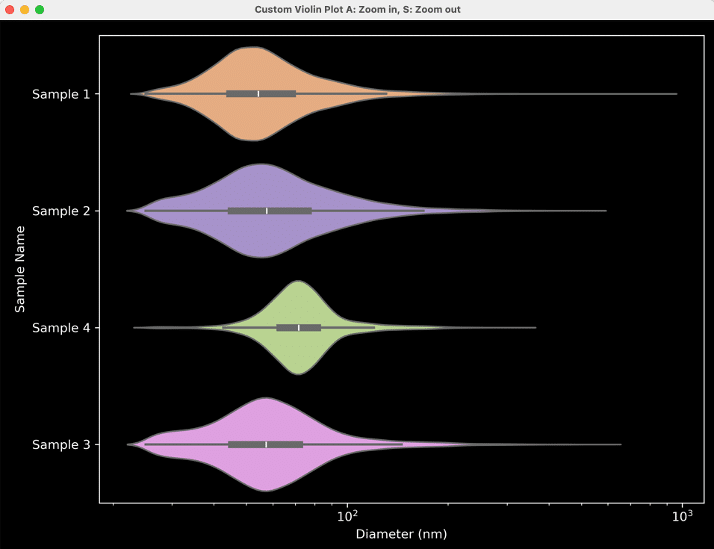
Figure 22: Result from settings in Figure 21.
Custom Plot: Histograms
- After clicking “Skip” in the violin plot generator window, a new window entitled “Histogram Generator” appears. This window generates a histogram for the chosen parameter (Plotting Stat) separated by Sample Name and optionally colored by Split Parameter (Figure 23).
- “Plotting Parameter” is the parameter that will be plotted along the X axis (e.g., Circularity, Figure 23). The options are as above (Table 2).
- There is the option to plot histograms using counts or percentages (stat type, Figure 23), of coloring the plot based on a Split Parameter (e.g., chip #, Figure 26). The default setting is “None”.

Figure 23: Histogram Generator Window
- Check the “Auto-Scale” box to auto-scale the axes, or when unsure of how the data looks. Otherwise, set the axis minimums and maximums and transparency (0 is transparent, 1 is opaque) using the fields provided. To plot these data on a log scale, check the “Log Scale?” box below the “Auto-Scale” checkbox.
- The “Bin Size” can be adjusted. This is not relevant for data plotted on log-scale axes. For example, ranges and suggested starting bin sizes (Table 4). Note that if a bin size that is too large for the data is chosen, e.g., a bin size of 5 for circularity, the histogram will not generate.
- Once ready, click the “Plot” button at the bottom of the window. All plots will be saved in the same folder as the results file. This window may be used as many times as wished for different plots.

Figure 24: Example output from settings in Figure 23. See figures 25 and 26 for a different example of settings and resulting plots.

Figure 25: Another example filled-out histogram window.

Figure 26: Output from settings in Figure 25.
Table 4: Suggested starting ranges and bin sizes for histograms
| Plotting Statistic | Usual Range | Suggested Bin Size |
|---|---|---|
| Number of localizations | 0-4000 | 10-50 |
| Skew / Circularity | 1-3 / 0-1 | 0.01-0.05 |
| Density | 0-0.5 | 0.005-0.01 |
| Cargo PositivityArea / Discretized Area | 0-1000000 | 1000+ |
| Diameter / Length / Radius of Gyration | 0-1000 | 5-10 |
| Counts in Channel X | 0-2000 | 1-10 |
| Cargo abundance (log) | 0-5 | 0.1-0.5 |
Summary data stats
A spreadsheet with several tabs (Figure 27) is generated with summary statistics, including means, standard deviations, and medians (summarized in Tables 5 and 6).

Figure 27: Summary stats spreadsheet.
Table 5: Summary statistics generated: key results tab.
| Tab | PanLNP Only | +Cargo | +Ligand | +Cargo +Ligand |
|---|---|---|---|---|
| Particle Diameter +/- SD -Separated also by positivity if Cargo or Ligand selected | ✓ | ✓ | ✓ | ✓ |
| PEG Locs/LNP +/- SD | ✓ | ✓ | ✓ | ✓ |
| Clusters/FOV +/- SD | ✓ | ✓ | ✓ | ✓ |
| Ligand Positivity (%) +/- SD | ✓ | ✓ | ||
| Cargo Positivity (%) +/- SD | ✓ | ✓ | ||
| Cargo + Ligand Double Positivity (%) +/- SD | ✓ | ✓ | ✓ | |
| Ligand Locs/LNP +/- SD | ✓ | ✓ |
Table 6: Remaining tabs generated in the summary statistics file.
| Sheet | PanLNP Only | +Cargo | +Ligand | +Cargo +Ligand |
|---|---|---|---|---|
| Shape Stats by Sample (Mean, St Dev, Median) | ✓ | ✓ | ✓ | ✓ |
| Positivity Stats by Sample (Mean, St Dev, Median) | ✓ | ✓ | ✓ | |
| Shape Stats by Sample and Positivity (Mean, St Dev, Median) | ✓ | ✓ | ✓ |
Installation troubleshooting
- Most companies have systems in place to prevent viruses from being downloaded and run on company computers. If these block the use of the LNP Axis program, there are some solutions to be applied.
- When using a Mac for instance, the following error message might appear (Figure 28). In this case, navigate to the privacy & security settings in the MacBook and navigate to Developer Tools. Then, click the “+” button and navigate to the .exe file and add it to the list (Figure 29). Then execute the LNP Axis program again.

Figure 28: Error message upon initially opening a GUI on a MacBook with virus protection
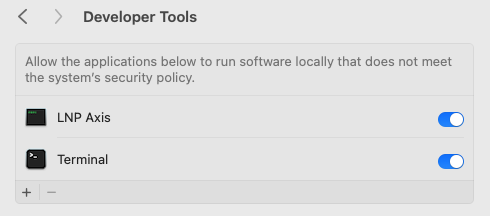
Figure 29: Adding the LNP Axis exe to Developer
A similar error message could appear again. If so, navigate back to the privacy & security settings and scroll down to the bottom, where it says “LNP Axis was blocked to protect your Mac.” Click “Open Anyway” next to it (Figure 30).

Figure 30: One further step may be required under Privacy & Security Settings.
On a Windows computer, an error message might also appear. Click “More information”, then “Run Anyway” to allow the LNP Axis program to run.
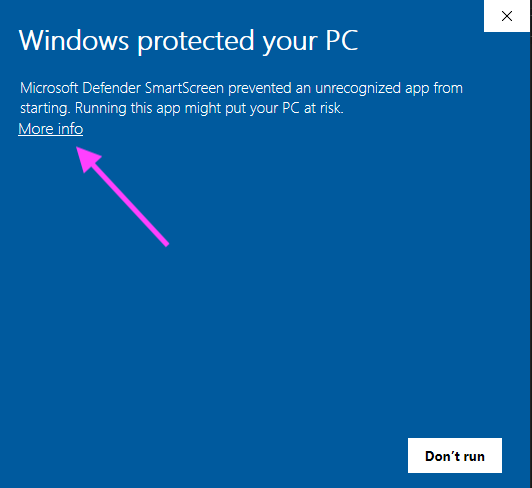
Figure 31: Example error message from a Windows machine. Click “More info”

Figure 32: After clicking “More info”, click “Run Anyway”
Note
For ease of use, we recommend adding a shortcut to the .exe to the desktop. On a Mac, right click the .exe and click “Make Alias”, then copy to the desktop. On Windows, right-click the .exe and “Make Shortcut” to copy to the desktop.
For anything else, contact the ONI team through the Service Desk.
Print User Guide