Run CODI Locally With CODI Offline learn more
EVP2 Axis 3.0
Last updated: August 25th 2026

Free and open-source analysis tool for easy analysis for extracellular vesicles (EVs) data across multiple datasets.
Instructions
Print Section
Overview
EVP2 Axis is a free and open-source analysis tool for easy analysis of extracellular vesicles (EVs) data across multiple datasets. EVP2 Axis allows users to generate both standardized and custom plots with user-defined sample names, and the analysis of features such as EV counts, size, and positivity plots across several fields of view (FOVs) and samples.
EVP2 Axis is designed for use with datasets acquired using ONI’s NimOS or AutoEV software and analyzed with the EV Profiler or AI EV Profiling analysis tools on ONI’s cloud-based analysis platform, CODI. If using the ONI Application KitTM: EV Profiler 2 for sample preparation, we recommend naming the channels listed on Table 1 (note: replace “Custom Protein” with your name of choice).
Table 1
| Base Kit | Imaged With | Channel 0 | Channel 1 | Channel 2 |
|---|---|---|---|---|
| Tetraspanin Profiling | NimOS | CD63 | CD81 | CD9 |
| Tetraspanin Profiling | AutoEV | CD81 | CD63 | CD9 |
| Pan-EV and Tetraspanin Trio | NimOS | Tet Trio | Pan-EV | |
| Pan-EV and Tetraspanin Trio | AutoEV | Tet Trio | Pan-EV | |
| Pan-EV, Tetraspanin Trio, and Custom Protein | NimOS | Tet Trio | Custom Protein | Pan-EV |
| Pan-EV, Tetraspanin Trio, and Custom Protein | AutoEV | Custom Protein | Tet Trio | Pan-EV |
Download Results from CODI
To use EVP2 Axis, data must be downloaded from CODI using the batch download feature. To begin, select the collaboration of choice in CODI and click the “Analysis results” button on the left side (Figure 1). EV Profiling analysis runs automatically with AutoEV, resulting in a populated list of analyses in the results section.
Then, on the upper section, click “batch download” (Figure 2):
- Scroll to the datasets of choice and click the empty circles to fill them in (Figure 3).
- Change the name in the upper section (Figure 4, yellow box), then click “download X results” (Figure 4, pink box). A zip file will be downloaded automatically. It is important not to navigate away until the download is complete.
- Open the zip file, which contains four files, and save them. The file needed for EVP2 Axis ends in “results_batch.csv”.


Figure 1: Within a CODI collaboration, click this button to view analysis results.

Figure 2: At the top of the analysis results section of CODI, the “batch download” button enables the checkboxes next to each analysis.


Figure 3: Select each analysis or FOV for the entire experiment.

Figure 4: Once all FOVs are selected, change the name in the yellow box to the chosen experiment title, then click the download button (pink box) to download the results. This might take a few minutes. It is important to keep this tab open until the download is complete.
Running EVP2 Axis
Download the appropriate program zip file depending on the operating system in use (Mac or Windows). Unzip the folder and double–click on the application file (Figure 5). The EVP2 Axis program window should appear automatically (Figure 6). If this does not happen, check the “Troubleshooting” section.
Note
The file to run the EVP2 Axis program can be found under (Figure 5):
EVP2 Axis V2/EVP2 Axis V2.exe

Figure 5: Appearance of the file to run the program. The source code (Python) can be found within the folder named “Source Code” in the build folder.s
Once the main program window is open, click the blue “Browse” button on the main menu (Figures 6 and 7) and navigate to the folder containing the results batch file. Then press the “Choose” button (Figure 7, green arrow).


Figure 6: Browse through folders to find the results file.


Figure 7: Select “Choose” once the desired results file has been found.
First, fill out the channel information for “Channel 0”, “Channel 1”, and “Channel 2” (Figure 8, yellow arrow). If unsure about the assigned channel numbers, refer to the example table below, which contains the typical EV Profiler 2 kit configurations and the channel-marker correlation (Figure 8, pink arrow). For Pan-EV + Tetraspanin Trio (with no custom protein), leave the remaining channel blank. For Pan-EV + Tetraspanin Trio + Custom, replace “Custom” with the name of your marker of choice. Note: The channel names used at this stage will propagate to the plots and summary files.
Next, select the color mode for the generated plots in the dropdown menu (Figure 8, blue arrow). The default setting is “Black” for a black background with white text. If “White” is selected, plots will be generated with a white background and black text.
There is also a checkbox below the color mode dropdown that is unchecked by default, labeled “Save .SVGs as well as .PNGs”. This checkbox can be selected to save the generated plots as vector format SVG files, as well as PNG image files. When ready, click the “Go” button (Figure 8, green arrow). At any time, the run may be cancelled by clicking the red “Cancel” button or by exiting the app.


Figure 8: Main EVP2 Axis program window. First, enter the names of each channel (1, 2, or 3, depending on the experiment settings, yellow arrow). A guiding example on channel names use for standard EV Profiler 2 kit configurationsl (depending on whether it was run using NimOS or AutoEV) can be found in the table labeled with a pink arrow. The color mode in the dropdown menu can be changed (blue arrow), before clicking Go when ready (green arrow).
Main EVP2 Axis program window. First, enter the names of each channel (1, 2, or 3, depending on the experiment settings, yellow arrow). A guiding example on channel names use for standard EV Profiler 2 kit configurationsl (depending on whether it was run using NimOS or AutoEV) can be found in the table labeled with a pink arrow. The color mode in the dropdown menu can be changed (blue arrow), before clicking Go when ready (green arrow):
- Each Lane has a checkbox next to it,: which can be unchecked if any of the lanes are to be excluded from the analysis (blue arrow).
- The “Sample Name” will determine how the plots are generated: each Lane with the same Sample Name will be combined. Type in the relevant sample name under the Sample Name column for each row.
- All rows list the chip number (chip #) as 1 automatically. Replace the “1” with the corresponding Chip ID for each lane by typing a number in the Chip # column (yellow arrow). This will be useful to color and visualize data by chip number.
- All information will be saved as a CSV file in the folder containing the results CSV file and will be used to populate the Sample Name and Chip information if EVP2 Axis is re–run on this same data. These values will remain changeable, however, in case the Sample Name and Chip information need to be updated during a rerun.
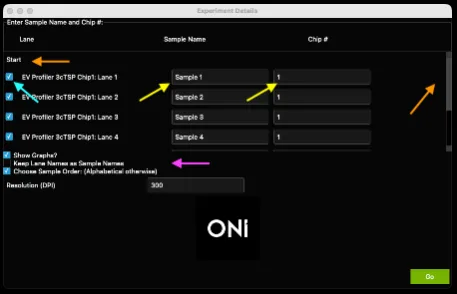
Figure 9: Example of completed experimental details. The Sample Name column and Chip # column are initial placeholders. Chosen custom names and chip numbers may be input before clicking Go to run the analysis.
Note
If more than 4 lanes (i.e., more than one chip) are analyzed, the lane list is scrollable through a bar on the right-hand side. “Start” and “Stop” row buttons appear before and after the entries to help complete all entries (Figure 9, orange arrows).
If the titles listed under the “Lane” column are the appropriate ones, the box “Keep Lane Names as Sample Names” can be checked to automatically copy the Lane names, leaving the Sample Names column blank (Figure 9, pink arrow).
Important: Unless the checkbox entitled “Show Graphs?” (Figure 9, pink arrow) is unchecked, auto-generated plots will appear as pop-up windo The auto-generated plots show differences across samples (Figures 10-12) and are important for analyzing biotype distributions and marker positivity. Additional custom plots to visualize population-level differences can be generated with the scatter plot, violin plot, or histogram generator windows afterwards. All plots are automatically saved in the same folder as the results file.
Finally, if left unchecked, the third checkbox on this window “Choose Sample Order: (Alphabetical otherwise)” will trigger for plots to contain samples from left to right or top to bottom alphabetically. If checked, a new window will appear after clicking the green “Go” button, enabling the manual selection of the sample order (Figure 10, see details below).
When ready, click the green “Go” button (Figure 9, green arrow).
When selecting the “Choose Sample Order” checkbox on the Experiment Details page, a new window will appear listing the user-defined sample names with numbers next to them (Figure 10), orange arrow. These numbers refer to the plotting order, starting at 1 and ending with the number of unique samples (4, in this case). The number of samples will be in the title (Figure 10, blue arrow). Any order of numbers may be chosen (Figure 10, right). When ready, click the green “Go” button (Figure 10, green arrow). At this point, several plots then auto-generate with the samples chosen order, and the scatter plot page will be next to appear.
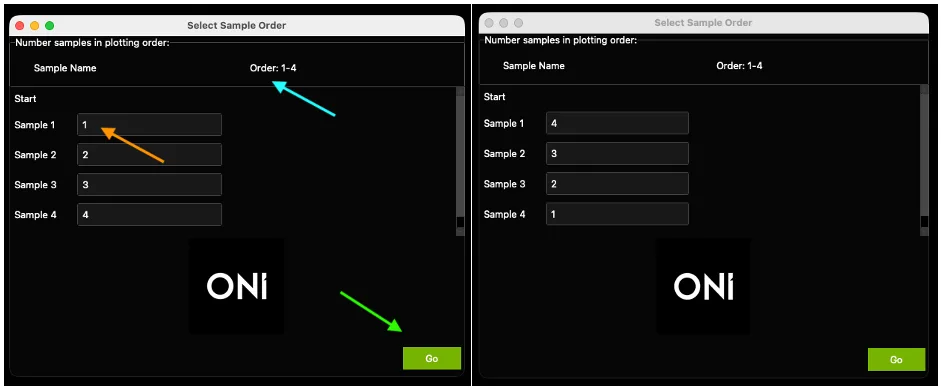
Figure 10: Left: The Select Sample Order window, which appears if “Select Sample Order” was checked in the Experiment Details page (Figure 8, pink arrow). Right: The appearance of the Select Sample Order window if the order was reversed (4-1 instead of 1-4: Any order of digits may be selected here, if each digit is selected only once)
Optional: selecting color palettes
EVP2 Axis uses the same color palette as in previous versions by default; however, a choice of colors can be optionally selected by the user with the latest version (EV Axis V3).
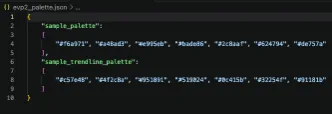
Figure 11: Appearance of default evp2_palette.json file
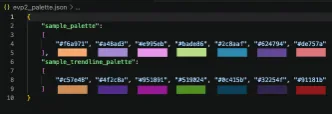
Figure 12: Default colors used in EVP2 Axis V3
To adjust the color palette, copy the “evp2_palette.json” file in the distribution folder for EVP2 Axis V3 (Figure 5) to the folder containing the results_batch.csv file downloaded from CODI. Open this file using any text editing software or VSCode (Figures 11-12). Replace any of the HEX codes with the HEX codes of the colors of your choosing: how these will be plotted is explained in detail below.
“Sample_palette” refers to the coloring in plots such as the Cluster Count swarm plot, Marker Positivity plots, Biotype stacked histograms, and the custom scatter plots, violin plots, or histograms. In the auto-generated warm plots (see “Auto-generated plots” below), the points are colored by Chip (Chip 1 colored by the first color in “sample_palette”, Chip 2 colored by the second color, and so on). In the auto-generated Diameter Histogram, each sample will be colored in the order of “sample_palette” based on the order chosen by the user. After 8 samples (the length of the sample_palette), the palette restarts, however, there is no limit to how long this palette may be when selected by the user. For scatter plots, violin plots, and histograms, the colors in the sample palette are used when No Split is selected, or when splitting by Chip #, Lane, or FOV.
The palettes will only be used in the scatter plot popup when a trendline is plotted. If a split is selected and a trendline is plotted at the same time, the color of the trendline will be a darker version of the color of the scatter points for that split. This “trendline” is a binned plot based on the number of bins provided in the “Trendline bins” section. The data is binned in the X axis and the mean and standard error of the mean (SEM) of the Y axis are plotted on top of the scatter plot (See Figure 23 for an example). See “Custom plots: joint scatter plot with side histograms” for more details.
Last, the “heatmap_colormap” palette defaults to “viridis”, which will be used in the scatter plot popup if “None-Heatmap” is selected as the split value. “Viridis” is a colormap defined in the Python package “matplotlib”, which is a colorblind-friendly, perceptually uniform sequential colormap. This can be changed to any colormap in matplotlib. Multiple examples are shown in Figure 13, and more can be found on the matplotlib website.
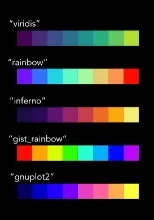
Figure 13: Example colormaps that can be used to generate heatmaps in the scatter plot window. While these are shown as discrete square units, many of the colormaps in matplotlib are continuous. See the matplotlib website for colormap details.
Auto-Generated Plots
Cluster count swarm plot
The first pop-up plot generated is a dot plot (swarm plot, like those in GraphPad Prism) where the X axis is separated by the sample names provided at the Experiment Details window, and where dots are colored by chip. The Y axis shows the total number of EVs per FOV. This is generated for all experiments and can be resized using the keyboard keys “a” (zoom in) and “s” (zoom out)


Figure 14: Cluster count swarm plot separated by sample name and colored by chip number.
Biomarker distribution plot
The second pop-up plot that is automatically generated is a stacked bar graph showing the proportion of the EV subpopulations containing each combination of markers (single-positive, double-positive, etc.) (Figure 15). If there is one channel, there will be one positivity group, and this plot might not be very useful. If there are two channels, there will be three positivity groups (2 single-positive and 1 double-positive). If there are three channels, there will be seven positivity groups (3 single-positive, 3 double-positive, and 1 triple-positive).
The displayed plot (“Normalized Biotype Distribution by Sample”) normalizes the data such that each FOV is normalized to 100%. The height of all the bars will be equal, representing 100% of the EVs in each FOV averaged for the sample. These plots are reminiscent of the plots that are generated in the CODI cross-dataset report/AutoEV output reports.


Figure 15: Biotype distribution histograms normalized to 100%.
- If the experiment contains one or more negative control lanes, where there are no EVs or no capture was used, the results might look quite skewed or strange for this lane. In this case, the Cluster Count Swarm Plot will be more informative.
- The non-normalized plot is also generated here and saved, but not shown, called a “Biotype Distribution by Sample”. This plot shows the total number of clusters (EVs) per Sample Name for each positivity type. This plot will contain data from all lanes and FOVs per sample. This plot will essentially be identical to the plot in Figure 15, but not normalized to 100%. Instead, the height of the bars will be different depending on the average number of FOVs, with error bars showing the standard deviation of the positivity in all FOVs.
Marker positivity plot
- The third and final pop-up plot generated contains bar charts showing marker positivity of EVs. This means the total number of EVs positive for each channel, regardless of positivity in other channels (Figure 16). Therefore, an EV that is double-positive will contribute to the positivity of both channels. There are N markers in this case, representing N channels.
- These plots will not be generated if the assay only has one channel, as each bar would be 100%.
- The displayed plot shows the normalized marker positivity per FOV. In the example plot (Figure 16), for each FOV in “Sample 1”, ~65% of the EVs are positive for CD81, ~50% of the EVs are positive for CD63, and ~70% of the EVs are positive for CD9. These numbers will add up to more than 100%. To better understand the values, read the “Understanding downloaded summary statistics” section.


Figure 16: Marker positivity histograms normalized to 100%
- An additional plot generated here, but not shown, displays the average number of clusters positive for each channel per FOV. For example, these data would show that on average each FOV in ‘Sample A’ contains ~4000 EVs positive for CD81, ~3000 positive for CD63, and ~4000 positive for CD9. This does not mean there are 4000+4000+3000 EVs per FOV, since many EVs will be counted in 2 or more groups.
Custom plot: joint scatter plot with side histograms
- After the auto-generated plots pop up (unless the “Show Graphs?” is left unchecked), another window called “Scatter Plot Generator” opens (Figure 17). This window generates X number of plots for X number of Samples as identified by their “Sample Name”. Plots are customizable based on the menu items.
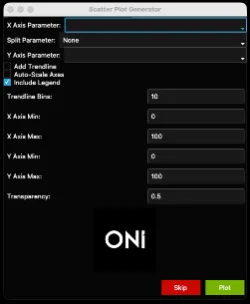
Figure 17: Scatter plot generator window.
- These plots are generated to show one point per EV and do not have means, standard deviations, etc. In this way, they are population-level analyses that show each EV as a separate data point, with one plot per sample. The auto-generated plots generated previously allow an across-sample comparison, and these Scatter plots allow for a population-level approach for each sample.
- “X Axis Parameter” is the parameter that will be plotted on the X axis. In the example plot (Figure 21), it is “Number of localizations” (i.e., number of locs per EV). All the X-Axis options can be found below (Figure 19).
- “Split Parameter” is the optional parameter that colors points based on a given parameter. For example, coloring each EV by chip # (Figure 20). Another example could be Biotype, in which EVs are colored based on their combinatorial positivity group (see explanation above: if one channel, only one group/color; if two channels, three groups/colors. if three channels, seven groups/colors). By default, the Split Parameter is “None”. Keep “None” as the option to have all EVs be the same color. See all options below (Figure 18).
- Users may instead wish to color the scatter plots based on relative density. To do so, select “None – Heatmap” in the Split Parameter dropdown (See Figure 22 for an example). In this case, a technique estimates the probability density function (likelihood of a variable) of the X and Y axis data being plotted over the range of the values in the results file. The results are normalized and add up to 1. The legend will show the individual probability density of each individual color.
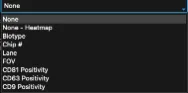
Figure 18: Scatter plot generator dropdowns with parameters that can split data by color.

Figure 19: Scatter plot generator dropdowns: All examples of parameters that can be plotted on the X axis and/or the Y axis.
- Check the “Auto-Scale” box to auto-scale the axes, or when unsure of how the data looks. Otherwise, set the axis minimums and maximums and plot transparency using the fields provided (see Figure 20 and the resulting Figure 21 as an example).
- Check the “Trendline” box to add an optional “trendline” to the scatter plot. These plots are helpful with dense datasets to show any trends or relationships between the two variables chosen on a scatter plot, and if there are differences in this relationship in different groups (or “splits”). This “trendline” is a binned plot based on the number of bins provided in the “Trendline bins” section. The data is binned in the X axis and the mean and standard error of the mean (SEM) of the Y axis are plotted on top of the scatter plot (See Figure 23 for an example).
- Check the “Include Legend” box to include a legend. Occasionally, legends can hide data points. Especially for dense samples, it can be helpful to plot once with a legend and once without to ensure data is not behind a legend. Both plots will be saved independently, one with “legend” in the filename and one without.
- Once ready, click the “Plot” button at the bottom of the window. The generated plot will pop up. Settings can be changed at any time by going back to the scatter plot window.
- All plots will be saved in the same folder as the results file. The window may be used as many times as wished for different plots.
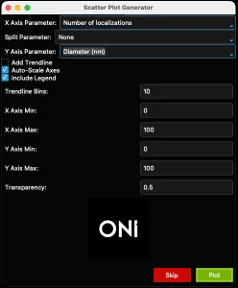
Figure 20: Example filled-out scatter plot window
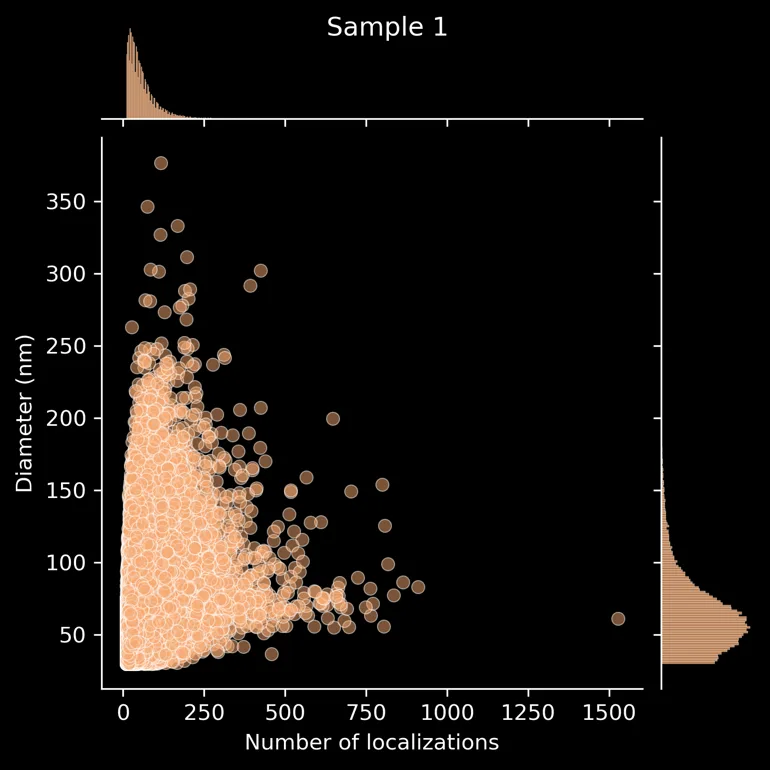
Figure 21: Example output from the settings in Figure 20.
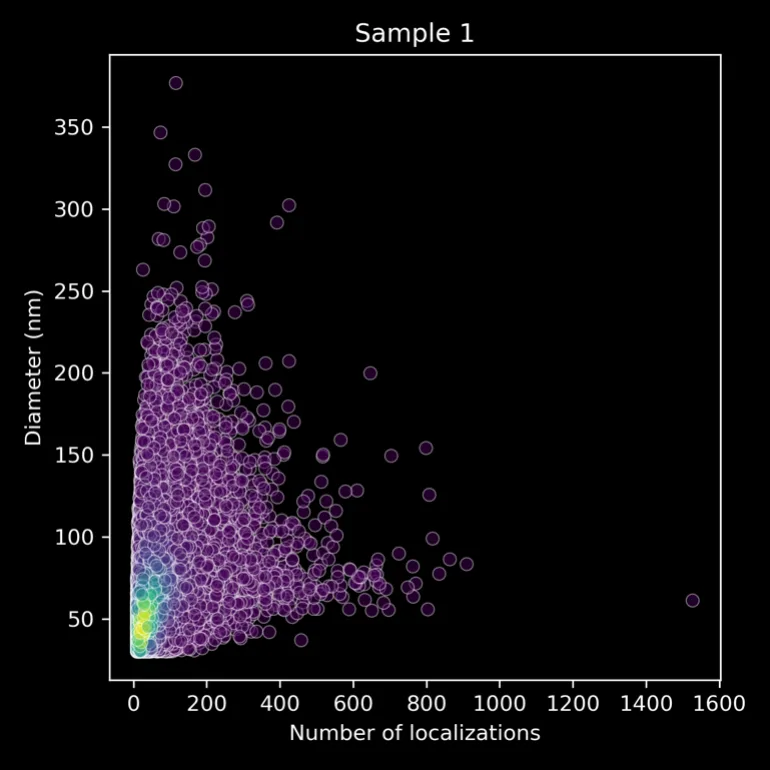
Figure 22: Heat Map generated from Figure 20 with “Split Parameter” adjusted to “None – Heatmap” and “Include Legend” unchecked. Colors are based on relative density of the individual points, where yellow is the densest and purple is the sparsest.

Figure 23: Scatter plot generated from Figure 20 with “Split Parameter” adjusted to “None” and “Add Trendline” Checked
Note
Click the “Skip” button to skip ahead to a different type of plot.
Custom Plot: Violin Plots
- After clicking “Skip” in the scatter plot generator window, a new window will appear entitled “Violin Plot Generator”, which can be used to generate a violin plot for a chosen parameter. The “Plotting Parameter” is the parameter that will be plotted along the X axis (e.g., diameter (nm), Figure 24). The options are the same as above (Figure 19).
- The plot will separate each sample by name and can be colored by choosing a “Split Parameter” (Figure 18). Alternatively, keep the “Split Parameter” set to None (Figure 24) which will color the violin plots by sample name (Figure 25).
- Data can be plotted on a log scale by checking the “Log Scale?” box below the “Split Parameter” dropdown menu.
- Check the “Include Legend” box to include a legend. Occasionally, legends can hide data points. Especially for dense samples, it can be helpful to plot once with a legend and once without to ensure data is not behind a legend. Both plots will be saved independently, one with “legend” in the filename and one without.
- Once ready, click the “Plot” button at the bottom of the window. To skip ahead to a different plot type, click the “Skip” button. One of the generated plots will pop up. Go back to the violin plot window to change any of the settings.

Figure 24: Violin plot generator filled out with the diameter parameter.


Figure 25: Example output from settings in Figure 24.
Custom Plot: Histograms
- After clicking “Skip” in the violin plot generator window, a new window entitled “Histogram Generator” appears. This window generates a histogram for the chosen parameter (Plotting Stat) separated by Sample Name and optionally colored by Split Parameter (Figure 26).
- “Plotting Parameter” is the parameter that will be plotted along the X axis (e.g., Counts in Channel 2 (CD9), Figure 26). The options are as above (Figure 19).
- There is the option to color based on a Split Parameter (e.g., chip #, options in Figure 18). The default setting is “None”.

Figure 26: Example histogram generator window.
- There is also the option to plot histograms using Counts or Percentage (Stat Type).
- Check the “Auto-Scale” box to auto-scale the axes, or when unsure of how the data looks. Otherwise, set the axis minimums and maximums and transparency (0 is transparent, 1 is opaque) using the fields provided. To plot these data on a log scale, check the “Log Scale?” box below the “Auto-Scale” checkbox. To plot a legend on the histogram, keep the “Legend” box checked. Otherwise, uncheck the “Legend” box to remove the legend.
- The “Bin Size” can be adjusted. This is not relevant for data plotted on log-scale axes. For example, ranges and suggested starting bin sizes (Table 2). Note that if a bin size that is too large for the data is chosen, e.g., a bin size of 5 for circularity, the histogram will not generate.
- Once ready, click the “Plot” button at the bottom of the window. All plots will be saved in the same folder as the results file. This window may be used as many times as wished for different plots.

Figure 27: Example output from settings in Figure 26. See figures 28 and 29 for how different settings were used to improve the plot.
Table 2: Suggested starting ranges and bin sizes for histograms
| Plotting parameter | Usual Range | Suggested Bin Size |
|---|---|---|
| Number of localizations | 0-4000 | 10-50 |
| Skew / Circularity | 0-4/0-1 | 0.01-0.05 |
| Density | 0-0.5 | 0.005-0.01 |
| Area / Discretized Area | 0-1000000 | 1000+ |
| Diameter / Length / Radius of Gyration | 0-1000 | 5-10 |
| Counts in Channel X | 0-2000 | 1-10 |
- In Figure 27, the data is mostly left-shifted and could be stretched to show the most important facets of the data. To fix this, uncheck the ”Auto-Scale Axes” checkbox (Figure 28, yellow arrow) and select more appropriate axis minimum and maximum values (Figure 28, pink arrow) and a smaller bin size (Figure 28, orange arrow). The transparency is set to a higher value (Figure 28, green arrow) to improve visual clarity (Figure 29).
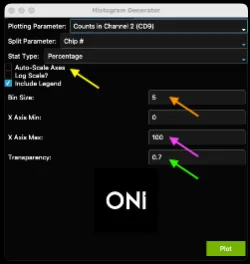
Figure 28:Example of adjusted histogram generator to improve output in Figure 27

Figure 29: Output from improved settings in Figure 28.
Understanding Downloaded Summary Stats
- A spreadsheet with several tabs (Figure 25) is in the same folder as all the plots.
- The first tab (“Mean by Sample and FOV”) shows the mean of each statistic from the results value as a “mean of means”, i.e. the mean of all FOV means for each statistic. For example, if two FOVs are taken and the mean diameters from each FOV are 120 nm and 130 nm, the mean for this sample will be 125, regardless of how many EVs there are in each FOV. The same logic applies to the second tab (“Standard Deviation by Sample and FOV”).
- The third tab (“Median by Sample”) combines every EV of each sample type and shows the median value for each statistic (not averaged in any way by FOV). The sixth tab (“Median by Sample and Positivity”) follows the same logic
- The fourth tab (“Mean by Sample and Positivity”) uses the same logic as tab 1, but separates EVs by Biomarker Distribution, meaning single-positive, double-positive, etc. The fifth tab (“Standard Deviation by Sample and Positivity”) also follows this logic.


Figure 25: Tabs in the “Summary Stats.xlsx” spreadsheet results file.
Installation troubleshooting
- Most companies have systems in place to prevent viruses from being downloaded and run on company computers. If these block the use of the EVP2 Axis program, there are some solutions to be applied.
- When using a Mac for instance, the following error message might appear (Figure 26). In this case, navigate to the privacy & security settings in the MacBook and navigate to Developer Tools. Then, click the “+” button and navigate to the .exe file and add it to the list (Figure 27). Then execute the EVP2 Axis program again.

Figure 26: Error message upon initially opening EVP2 Axis on a MacBook with virus protection.

Figure 27: Adding the EVP2 Axis to Developer Tools allows the program to run.
A similar error message could appear again. If so, navigate back to the privacy & security settings and scroll down to the bottom, where it says “EVP2 Axis was blocked to protect your Mac.” Click “Open Anyway” next to it (Figure 28).

Figure 28: One further step may be required under Privacy & Security Settings.
- On a Windows computer, an error message might also appear. Click “More information”, then “Run Anyway” to allow the EVP2 Axis program to run.

Figure 29: Example error message from a Windows machine. Click “More info”
Note
For ease of use, we recommend adding a shortcut to the .exe to the desktop. On a Mac, right click the .exe and click “Make Alias”, then copy to the desktop. On Windows, right-click the .exe and “Make Shortcut” to copy to the desktop.
For anything else, contact the ONI team through the Service Desk.
Summary data statistics
Print Section
A spreadsheet with several tabs (Figure 30) containing a summary of the analysis, such as mean values, standard deviations, and medians, is included in the same folder as all the plots. This spreadsheet can be useful for reporting metrics in publications and seeing data separated by FOV, Lane, Chip, Sample, Positivity, and more.

Figure 30. Summary statistics (stats) spreadsheet titles.
Tab 1: Key Stats
Each of the different key statistics provided for each Sample Name measured in Tab 1 (Figure 31) represents the mean of all FOVs included in the lanes labeled with the specific sample name. First, the median EV diameter (nm) is shown with a standard deviation (columns B and C), then the mean number of EVs/FOV with a standard deviation is shown (columns D and E). The total number of EVs measured for each sample is next (column F).
Columns G-L (depending on the number of channels in the assay) show the marker positivity (N and %), that is, the number and percentage of EVs in the sample that are positive for each marker, regardless of positivity in other channels. Because EVs can be double- or triple-positive, these percentages will not add up to 1.
Columns M-Z, on the other hand, show the biotype positivity (N and %), that is, the number/percentage of EVs in the sample that are single-, double-, and triple-positive for each marker combination. If there is 1 channel in the assay, this section will not be relevant. If there are 2 channels, there will be three biotypes (two single-positive and one double-positive). If there are 3 channels, there will be seven possible biotypes (three single-positive, three double-positive, and one triple-positive). These percentages will add up to 1, meaning that no EV is counted twice.


Figure 31. Key Stats tabs titles for a three-channel dataset
Tab 2: Sample Parameters
The second tab of the summary statistics tab is a printout of the Experiment Details window of EVP2 Axis, in which the sample names and chip numbers are input.
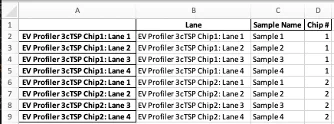
Figure 32. Example Sample Parameters tab
Tab 3: Cluster Stats
The third tab of the summary statistics spreadsheet summarizes cluster shape statistics and EV count statistics for each unique Sample Name. The total sum of EVs in all FOVs associated with each sample name can be found in column B, and columns C-E show the mean, standard deviation, and median of the number of EVs per FOV. Columns F-H show the number of unique Lanes, FOVs, and Chips associated with the Sample Name, respectively.
All statistics on this tab are performed on a per-FOV (per-dataset) basis. For example, the mean skew of a sample named “Sample A” containing 16 FOVs from 4 lanes would represent the mean of 16 values: each value being the mean of the skew of all EVs in each FOV. This contrasts with calculating the mean on a per-EV basis, where all EVs, regardless of FOV/dataset. are listed and the mean taken of that list. The remaining columns show the mean, standard deviation, and median of various shapes statistics that are measured in CODI. For more information on these metrics, visit the CODI Help Desk.


Figure 33. Cluster Stats Tab HeadersFigure 33. Cluster Stats Tab Headers
Tab 4: Channel-Specific Stats
One copy of this tab will be generated for each marker included in the assay. This example (Figure 34) shows a tab where Channel 0 is included and named “CD81”. This tab calculates marker statistics for each Sample Name (one row per sample). The total number of EVs in each sample and the total number and percentage of EVs positive for this marker is calculated. The mean, standard deviation, and median counts of localizations per EV are also measured, separated first by Marker-Positive and Marker-Negative EVs, then calculated for all EVs regardless of marker positivity.

Figure 34. Example Channel 0 (CD81) tab headers
Tab 5: Cluster Stats by Biotype
This tab shows the same data as Tab 3 (Cluster Stats) but separated by biotype positivity. The number of EVs, FOVs, Lanes, and Chips is calculated for each biotype in each sample, and shape statistics are calculated for each biotype in each sample. In this tab, each EV is only counted once.
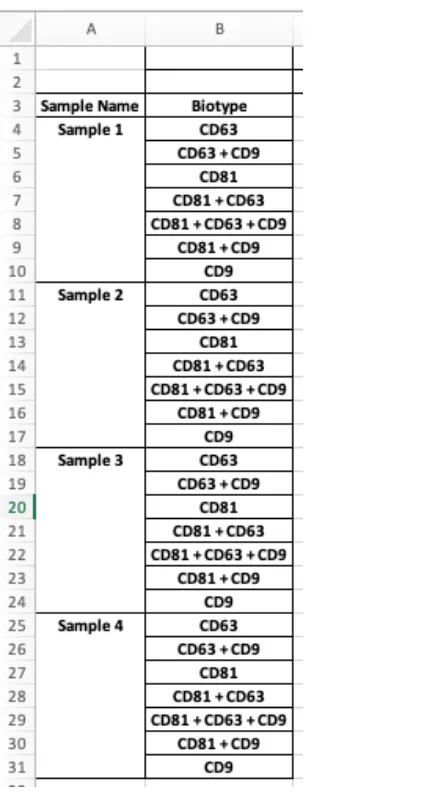
Figure 35. Cluster Stats by Biotype row titles. Tab headers are the same as Figure 33.
Tab 6: Cluster Stats by Marker
This tab shows the same data as Tab 3 (Cluster Stats) but separated by marker positivity. The number of EVs, FOVs, Lanes, and Chips is calculated for each marker in each sample, and shape statistics are calculated for each marker in each sample. In this tab, EVs may be counted multiple times, as EVs can be single-, double-, or triple-positive for the markers included in the assay.
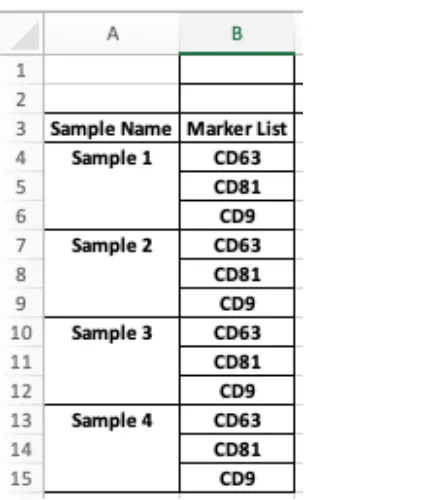
Figure 36. Cluster Stats by Marker row titles. Tab headers are the same as Figure 33.
Tab 7: Dataset Means
The last tab in the summary statistics tab calculates the mean of various statistics for each FOV in the results file. First, the marker positivity and biotypes are calculated. Then, the shape statistics are averaged (Diameter, Number of localizations, etc.) for each FOV. The dataset name (given by the user) and the dataset ID (the unique ID/URL seen in CODI) is also printed on the tab.
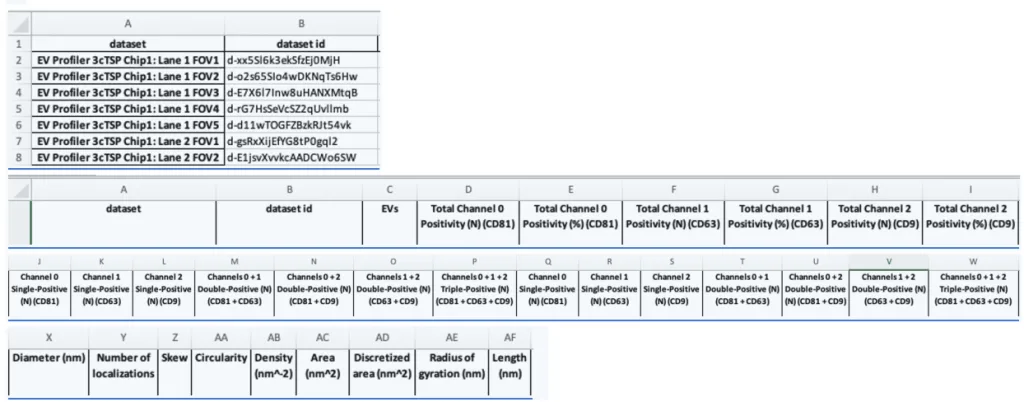

Figure 37. Dataset Means row titles and tab headers
Installation troubleshooting
Print Section
- Most companies have systems in place to prevent viruses from being downloaded and run on company computers. If these block the use of the EVP2 Axis program, there are some solutions to be applied.
- When using a Mac for instance, the following error message might appear (Figure 38). In this case, navigate to the privacy & security settings in the MacBook and navigate to Developer Tools. Then, click the “+” button and navigate to the .exe file and add it to the list (Figure 39). Then execute the EVP2 Axis program again.
Figure 38: Error message upon initially opening EVP2 Axis on a MacBook with virus protection.
Figure 39: Adding the EVP2 Axis to Developer Tools allows the program to run.
A similar error message could appear again. If so, navigate back to the privacy & security settings and scroll down to the bottom, where it says “EVP2 Axis was blocked to protect your Mac.” Click “Open Anyway” next to it (Figure 40).
Figure 40: One further step may be required under Privacy & Security Settings.
- On a Windows computer, an error message might also appear. Click “More information”, then “Run Anyway” to allow the EVP2 Axis program to run.
Figure 41: Example error message from a Windows machine. Click “More info”
Note
For ease of use, we recommend adding a shortcut to the .exe to the desktop. On a Mac, right click the .exe and click “Make Alias”, then copy to the desktop. On Windows, right-click the .exe and “Make Shortcut” to copy to the desktop.
For anything else, contact the ONI team through the Service Desk.
Print User Guide